Rich link previews in SwiftUI that actually match your app
When you add a theatre event in CritiCal, you often paste in a link — the production’s official site, or the review you filed and published. We want those links to show up as rich previews: a thumbnail, the page title, the host. The kind of preview you get when you paste a URL into Messages.
Apple ships exactly that component for developers to use. It’s called LPLinkView,
it lives in the LinkPresentation framework, and it is designed to be simple
to adopt. And that’s what we used in version 1.0. CritiCal shipped with LPLinkView
rendering every event and review link. For an MVP, it was fine.
Version 1.3 changes that. It’s a release built around the way the app looks — full-bleed production photography, screens tinted to each event’s colour. Against that backdrop, the unpredictability of Apple’s link card – its size and prominence dictated by whatever image each site chose to advertise – suddenly stands out as the one element that refuses to join in.
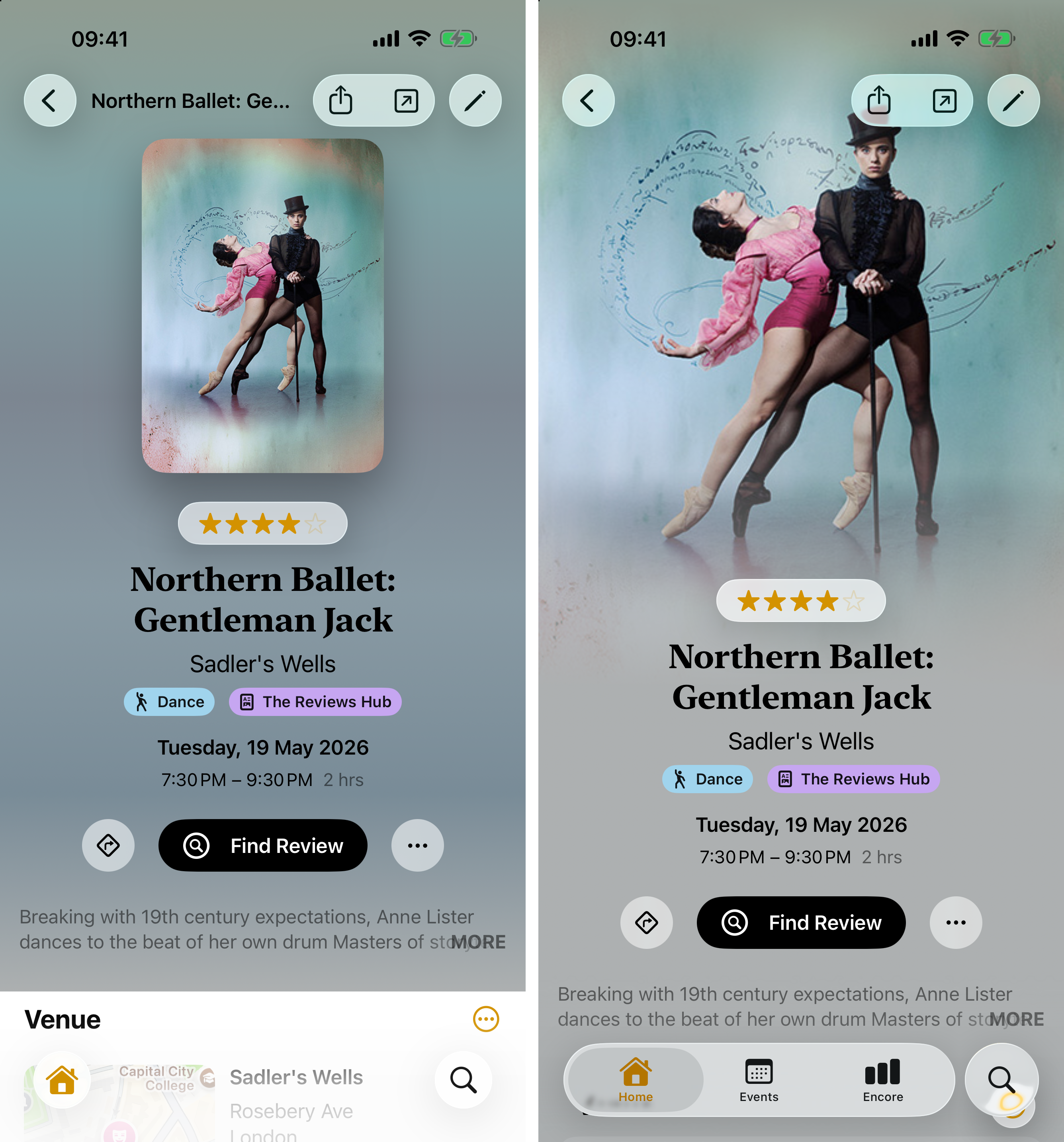
And also in version 1.3, an event’s Documents section is no longer limited to PDFs,
Word documents and the like. You can add as many web links as you need – so if a show’s
digital programme is hosted on a website rather than a PDF, you can still add it to
the event. With so many URLs potentially being added to the same event, LPLinkView’s
unpredictability becomes even more of a problem.
So I have replaced it with a small SwiftUI view called MetadataLinkRow that uses
Apple’s link metadata but none of Apple’s link chrome. This post is about
why, and how.
The problem with the built-in view
LPLinkView is a UIView (and an NSView on the Mac). To use it in SwiftUI
you must wrap it in a UIViewRepresentable or NSViewRepresentable and hand it
a URL. From that, it renders a self-contained card, sized and filled entirely
from the remote page’s metadata: a hero image up top, the title beneath it, the
whole thing on its own background.
That’s wonderful in a chat bubble, where the link is the message. On a detail
screen, where the link is one supporting element among many, it’s a lot — and
exactly how much is out of your hands. The card is as prominent as whatever
og:image the site decided to serve.
Plenty of sites serve a good image, and when they do LPLinkView looks great.
But “when they do” isn’t something you can design around. As a user of CritiCal
as well as its coder, one of my recent events was a
dance piece at Sadler’s Wells, Northern Ballet’s Gentlemen Jack
(you can read my review at The Reviews Hub).
But Sadler’s Wells pages have an og:image that is an enormous house logo — not
the production, not the dancers, just the venue’s branding. The card rendered it
at full size, and that logo went on to dominate a screen that was meant to be
about the show. You get no say in the crop, the scale, or the weight it’s
given; the remote page does.
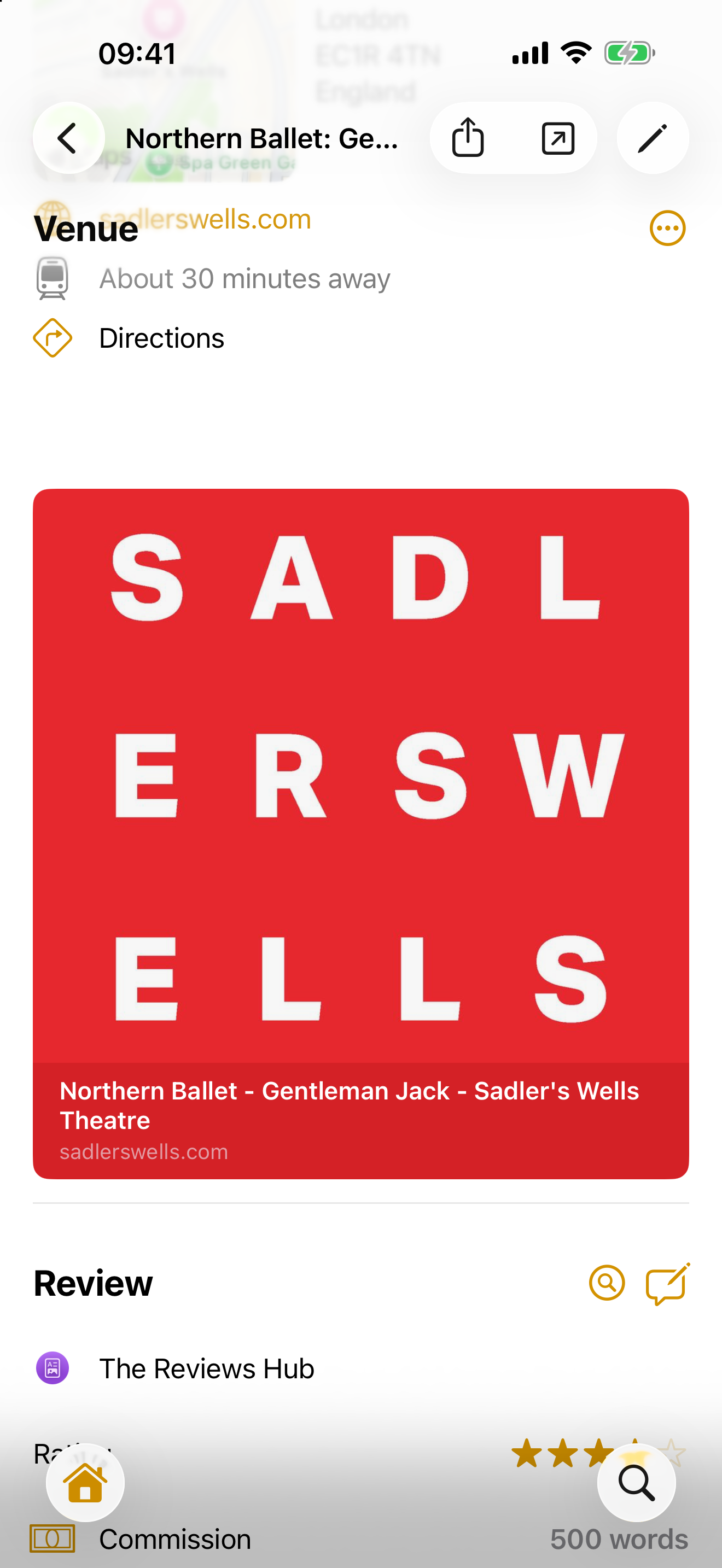
LPLinkView at full size: the Sadler's Wells venue logo, lifted straight from the page's og:image, overwhelms the screen.And even when the image behaves, the chrome doesn’t. In version 1.3, CritiCal’s
event detail screen is themed — each event carries a tint colour, and sections
sit on a custom
SectionCardBackground that, on iPhone at least, adapts to light and dark mode
and to the event’s colour. LPLinkView inherits none of it, painting its own
surface on top like a sticker slapped onto the design.
You can’t style your way out of this, because the rendering happens inside a framework view you don’t control.
The key realisation: the data and the view are separable
Here’s the thing most “add link previews” tutorials gloss over. LPLinkView is
just one consumer of a lower-level type, LPMetadataProvider. The provider does
the actual work — it fetches the URL, scrapes the page’s Open Graph tags, and
hands you an LPLinkMetadata object. LPLinkView then renders that object in
Apple’s house style.
But nothing stops you from creating the thing that renders it. Ask the provider
for the metadata, pull out the three or four primitives you care about, and draw
them with an ordinary HStack. Now the preview is plain SwiftUI — so it obeys
your tint, your background, your fonts, everything.
That’s the whole idea. The rest is execution, and the execution has three sharp edges worth walking through.
Step 1: A loader that owns the fetch (and caches it)
The metadata fetch is asynchronous and — this matters — single-use and live.
A fresh LPMetadataProvider performs a real network request every time you call
it, and each instance can only be used once.
That’s a trap inside a SwiftUI List. Rows get created and destroyed constantly
as the list diffs and re-lays-out. If each row kicks off a fresh scrape every
time it appears, you’ll hammer the network re-fetching things you already have.
So the first building block isn’t a view — it’s a small @Observable loader
that performs the fetch and caches the result per URL:
@MainActor
@Observable
final class LinkMetadataLoader {
    struct Snapshot {
        var title: String?
        var host: String?
        var image: Image?
    }

    private static var cache: [URL: Snapshot] = [:]

    private(set) var snapshot: Snapshot?

    func load(_ url: URL) async {
        if let cached = Self.cache[url] {
            snapshot = cached
            return
        }

        var result = Snapshot(title: nil, host: url.trimmedHost, image: nil)
        if let metadata = try? await LPMetadataProvider().startFetchingMetadata(for: url) {
            result.title = metadata.title
            if let host = metadata.url?.trimmedHost {
                result.host = host
            }
            result.image = await Self.loadImage(from: metadata)
        }

        Self.cache[url] = result
        snapshot = result
    }
}
Two design choices are doing quiet work here:
- The cache stores a
Snapshot, not theLPLinkMetadata. We extract the three values we actually render and throw the heavyweight metadata object away. The cache stays small and holds exactly what the view needs. - The cache is
static. It’s shared across every loader instance, so a URL scraped by one row is instantly available to the next row — or the next screen — that shows the same link.
trimmedHost is a small URL helper of our own — it’s what turns
https://www.example.com/path into the bare example.com we show as the
subtitle:
extension URL {
    var trimmedHost: String? {
        guard let host else { return nil }
        return host.hasPrefix("www.") ? String(host.dropFirst(4)) : host
    }
}
Nothing clever, but it’s the difference between a host that reads like a label
and one that reads like a URL. We use it twice in the loader: once as the
immediate fallback (url.trimmedHost, available before any network call), and
again on the metadata’s resolved URL, since a scrape may have followed a
redirect to a different host than the one the user pasted.
One honest limitation, called out so you don’t copy this blindly: this cache is in-memory and per-launch, and it never evicts. For a detail screen showing a handful of links, that’s exactly right. If you were building a feed that could display hundreds of links at a time, you’d want disk persistence and an eviction policy. Know your scale.
Step 2: Bridging a legacy callback into async/await
The trickiest edge is the image. LPLinkMetadata doesn’t give you a UIImage
— it gives you an NSItemProvider (sometimes a full preview image, sometimes
just a favicon). And NSItemProvider predates Swift Concurrency, so it loads
its object through an old-style completion handler that fires on a background
queue.
We want to turn that into a SwiftUI Image, and we want to do the heavy lifting
off the main actor:
/// Bridges the `NSItemProvider` image (preview, or favicon fallback) into a
/// SwiftUI `Image` off the main actor.
nonisolated private static func loadImage(from metadata: LPLinkMetadata) async -> Image? {
    guard let provider = metadata.imageProvider ?? metadata.iconProvider,
        provider.canLoadObject(ofClass: PlatformImage.self)
    else { return nil }

    return await withCheckedContinuation { continuation in
        provider.loadObject(ofClass: PlatformImage.self) { object, _ in
            continuation.resume(returning: (object as? PlatformImage)?.swiftUIImage)
        }
    }
}
There are three things to notice:
imageProvider ?? iconProvideris the graceful fallback chain. Prefer the big preview image; settle for the favicon; if neither exists, returnnil. The view will then decide what to show instead (in our case, a globe icon from SF Symbols).withCheckedContinuationis the canonical way to wrap a completion-handler API inasync. The continuation resumes exactly once, when the callback fires.nonisolatedlets this run off the main actor. Decoding an image is real work; there’s no reason to do it on the thread that’s also driving your UI. Only the final, tinyImagevalue crosses back.
PlatformImage is our own typealias — UIImage on iOS, NSImage on macOS —
with a swiftUIImage property that wraps whichever one you’ve got:
#if canImport(UIKit)
    import UIKit
    typealias PlatformImage = UIImage
#else
    import AppKit
    typealias PlatformImage = NSImage
#endif

extension PlatformImage {
    var swiftUIImage: Image {
        #if canImport(UIKit)
            Image(uiImage: self)
        #else
            Image(nsImage: self)
        #endif
    }
}
That single seam is what lets the same loader serve both platforms without a
#if in sight at the call site — the loadObject(ofClass: PlatformImage.self)
above resolves to UIImage or NSImage per platform, and .swiftUIImage
erases the difference on the way out.
”Why not just use AsyncImage?”
It’s the obvious question, and the answer is instructive. AsyncImage has
exactly one input — a URL it fetches — and LPLinkMetadata never gives you an
image URL. Its image-bearing properties are NSItemProvider objects, and an item
provider vends an already-resolved image, not a remote address. The page’s
og:image URL exists in the HTML, but LPMetadataProvider deliberately doesn’t
surface it; it resolves the asset for you and hands back the loaded result.
So the type you have is NSItemProvider → PlatformImage, and the type
AsyncImage wants is URL → Image. They don’t meet. That mismatch is the whole
reason the continuation bridge above exists — it isn’t boilerplate we could
delete by reaching for AsyncImage.
You could sidestep this by scraping the og:image URL yourself and feeding it
to AsyncImage, which would even buy you URLCache-backed disk caching for free
(the very thing our in-memory cache lacks). But you’d be re-implementing the
Open Graph parse that LPMetadataProvider exists to do, you’d still need the
provider for the title — so now you’re fetching twice — and you’d lose the
favicon fallback that imageProvider ?? iconProvider gives you for nothing. Not
worth it here.
There’s still something worth borrowing from it, though — not the API, but the
idea behind it. AsyncImage’s phases (.empty, .success, .failure) exist so
you can describe what the view looks like at every stage of loading, not just
the happy one. That’s a way of designing for consistency regardless of how much
data you actually have in hand at any given moment. Our own handling of the link
metadata should give us the same guarantee: a row that looks deliberate whether
the scrape has returned everything, nothing, or something in between. That
principle is what shapes the view in the next step.
Step 3: A view that always renders something
Now the view. The guiding principle: the rich preview is an enhancement, never a dependency. At every moment — before the fetch, during it, after a failure — the row must show something useful.
struct MetadataLinkRow: View {
    let url: URL

    @State private var loader = LinkMetadataLoader()

    private let thumbnailSize: CGFloat = 52

    var body: some View {
        Link(destination: url) {
            HStack(spacing: 12) {
                thumbnail
                VStack(alignment: .leading, spacing: 2) {
                    Text(title)
                        .font(.body)
                        .foregroundStyle(.primary)
                        .lineLimit(1)
                    Text(host)
                        .font(.footnote)
                        .foregroundStyle(.secondary)
                        .lineLimit(1)
                }
                Spacer(minLength: 0)
            }
            .frame(maxWidth: .infinity, alignment: .leading)
            .contentShape(.rect)
        }
        .buttonStyle(.plain)
        .task(id: url) { await loader.load(url) }
    }
}
Note the .task(id: url) on the body. Tying the task to the URL means that if
the row is recycled for a different link, SwiftUI cancels the in-flight load
and starts the correct one. The cache from Step 1 makes the common case instant;
task(id:) makes the recycling case correct.
The fallback logic lives in two computed properties, and it’s just a layered
chain of ??:
private var title: String {
    loader.snapshot?.title ?? loader.snapshot?.host ?? url.trimmedHost ?? "Link"
}

private var host: String {
    loader.snapshot?.host ?? url.trimmedHost ?? url.absoluteString
}
Read title out loud: the scraped page title, or failing that the host, or
failing that the host we derived from the URL ourselves, or — worst case — the
literal string "Link". It is impossible for this row to render blank.
The thumbnail tells the same story visually:
@ViewBuilder
private var thumbnail: some View {
    if let image = loader.snapshot?.image {
        image
            .resizable()
            .scaledToFill()
            .frame(width: thumbnailSize, height: thumbnailSize)
            .clipShape(.rect(cornerRadius: 10))
    } else {
        Image(systemName: "globe")
            .font(.title2)
            .foregroundStyle(.tint)
            .frame(width: thumbnailSize, height: thumbnailSize)
    }
}
Real preview image if we have one; a tinted globe if we don’t. And because that
globe uses .foregroundStyle(.tint), it picks up the event’s colour — the exact
thing LPLinkView could never do.
This is also where the unpredictability from Apple’s own link display gets designed
away. Notice that both branches resolve to the same thumbnailSize square, and
both Text rows are capped at .lineLimit(1). The row is therefore a fixed
height no matter what the scrape returns — a four-paragraph title, a giant
preview image, or nothing at all. LPLinkView sizes itself to its content, so a
list of them is a ragged column of different heights; MetadataLinkRow is a
tidy, uniform stack you can lay out against with confidence.
Remember our huge Sadler’s Wells preview with its enormous logo? With MetadataLinkRow,
that same scrape produces a row that’s the same proportions as other data on the page.
Nothing overpowering — just a modest, dependable link that respects the design of the
screen it’s on while still giving the user a richer preview when the site cooperates.
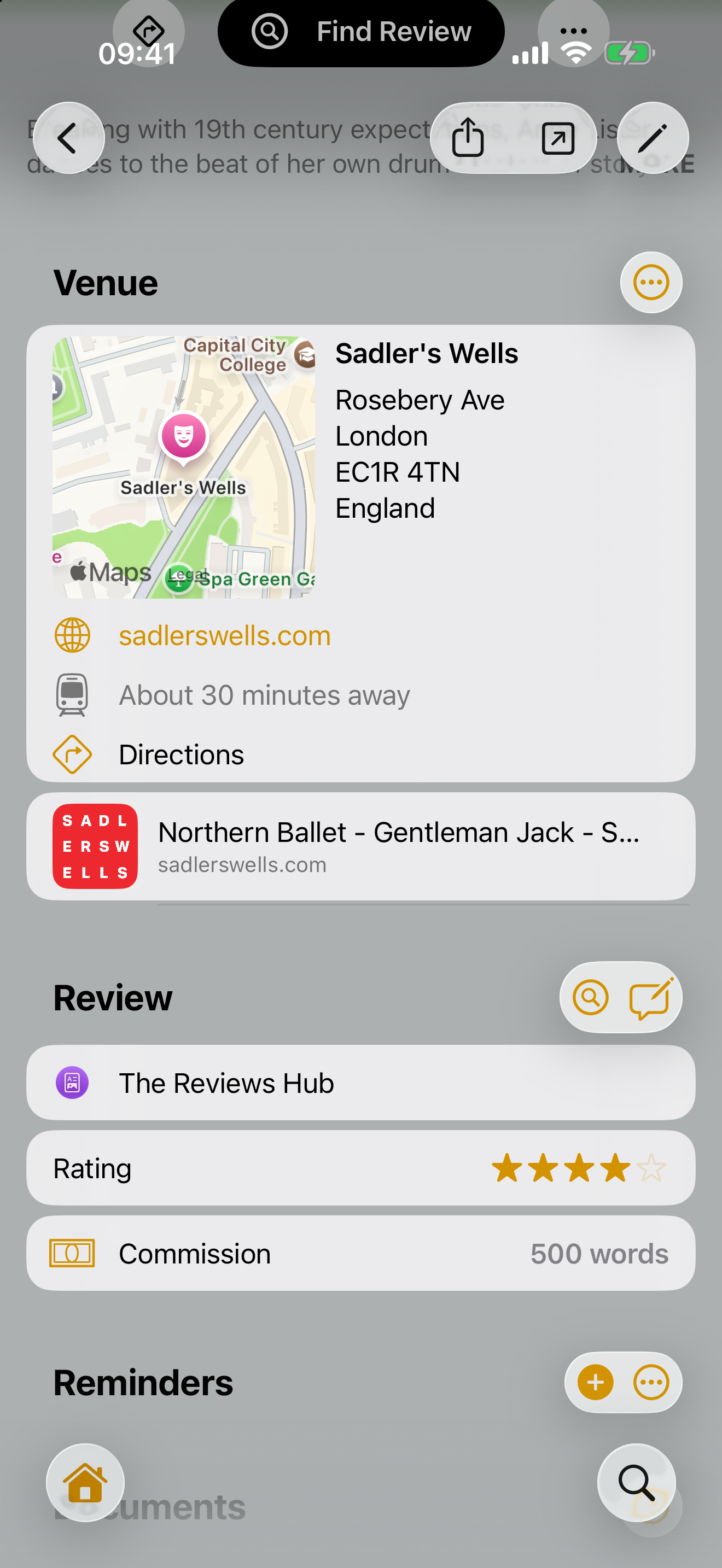
MetadataLinkRow: the logo reduced to a tidy thumbnail that sits comfortably within the page.The payoff: it degrades to the simple thing
Look back at what the row shows before any network call returns: a globe and the
bare host, derived entirely from the URL itself. That’s not a loading spinner or
a placeholder — it’s a perfectly serviceable link, the kind of plain
SwiftUI label you may have used if you’d never reached for
LPMetadataProvider at all. The metadata, when it arrives, simply upgrades that
row in place: the globe becomes a thumbnail, the host gains a title above it.
So there’s no failure state to design. When the network is slow or the scrape fails, users don’t see an error or an empty box; they see exactly the modest, dependable link they’d have seen anyway. The rich preview and the plain link aren’t two components — they’re two points on one continuum.
When to reach for this
Use LPLinkView when you want Apple’s look and you’re rendering into neutral
space — it’s less code and you get updates for free.
Build something like MetadataLinkRow when the preview has to live inside a
designed surface: a tinted card, a custom background, a themed list. The
trick is the same every time. Keep LPMetadataProvider for the data it’s
genuinely good at — scraping titles and images you’d never want to parse
yourself — and take back the rendering, because rendering is where your app’s
identity lives.
The framework fetches. You decide how it looks.
CritiCal is available on the App Store now. Version 1.3 adds rich link previews, full-bleed photography, and a new, expanded Documents section for each event. It will be available soon as a free update for all users. Some features of CritiCal require a paid subscription.